Releases & deployments
Connect your repository's CI, follow deploy runs, promote or roll back with an approval, and record every release.
Steps
- 1
Connect GitHub or GitLab
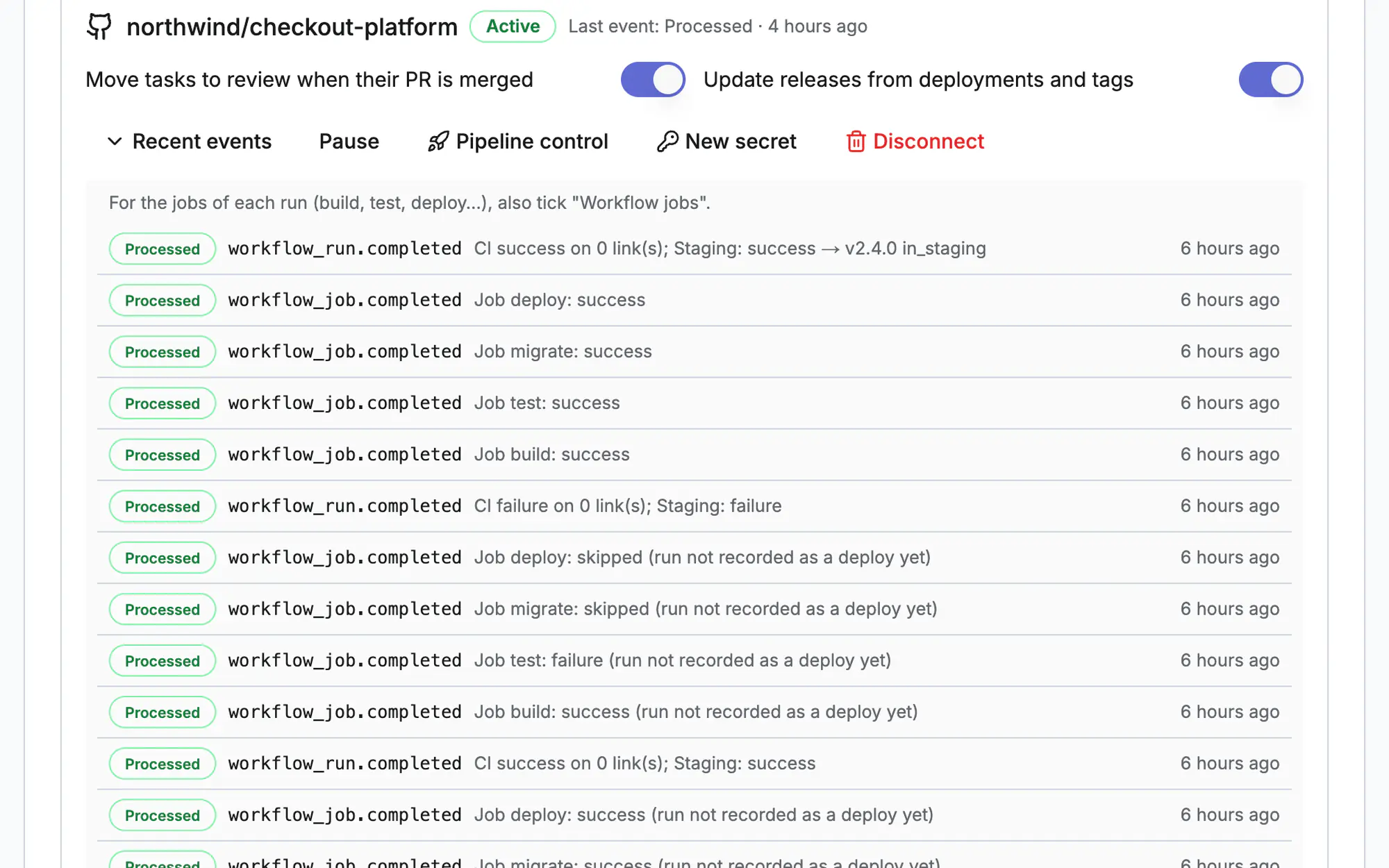
Under Releases & deploys → Configuration, add your repository and copy the webhook URL and secret into GitHub or GitLab. Read-only: Resolflow never pushes code.
- 2
Map your environments
Add Staging and Production and the workflow names that deploy to them, so each run lands in the right place.
- 3
Follow deploy runs
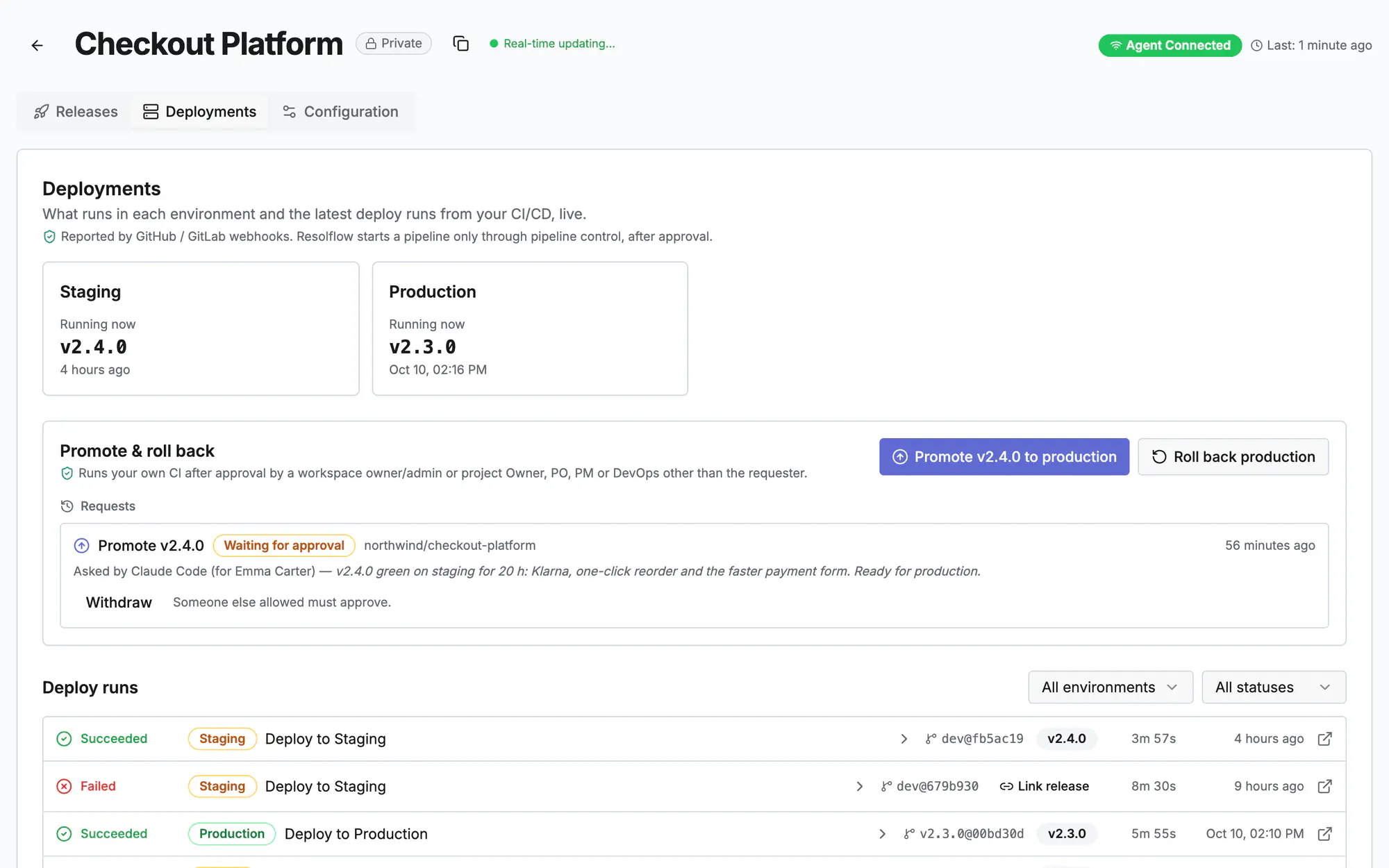
Deployments shows every run with its jobs, status and version, and tells the agents of the shipped tasks how it went.
- 4
Promote or roll back
With pipeline control on, an agent or a person asks to promote a version to production; an owner, admin or DevOps approves and your CI runs it.
- 5
Record the release
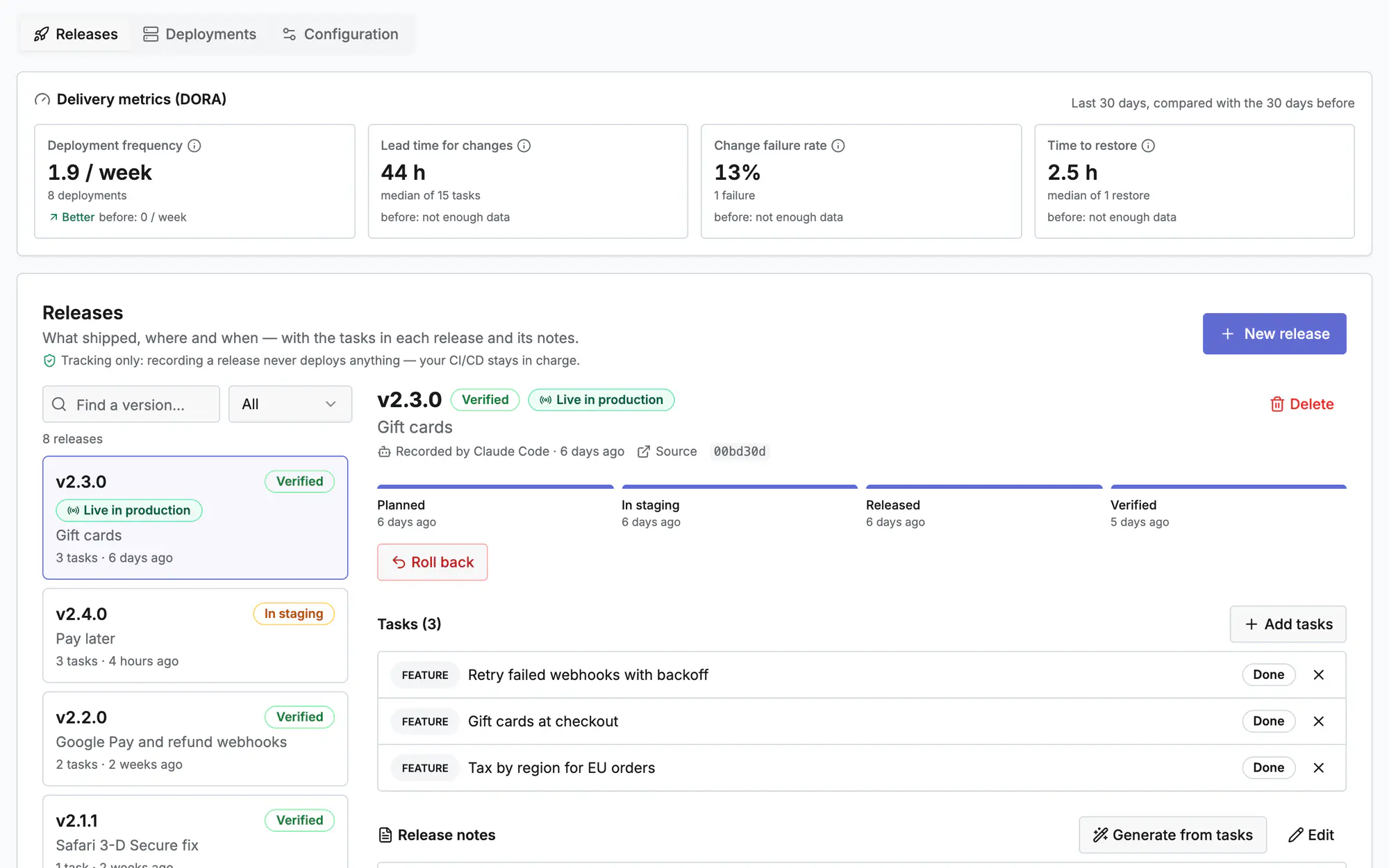
Each version gets release notes, its linked tasks and one release document, from planned to staging, released and verified.
- 6
Watch DORA
Deploy frequency, lead time, change failure rate and time to restore come from your real deploys.
On the screen
Screen 1 of 3
Screen 2 of 3
Screen 3 of 3
Watch it (0:20)
Common questions
Does Resolflow run my CI?
Only when you turn on pipeline control and a promote or rollback request is approved: it then starts the workflow you chose. Otherwise it only reads webhook events.
Who can approve a promote?
A workspace owner or admin, or a project Owner, PO, PM or DevOps who did not ask for it. A project can also approve requests automatically.
A deploy run does not show up
Check the webhook's recent deliveries in GitHub or GitLab, and that the workflow name matches an environment under Configuration.
Read more
Docs: Tasks and playbooksPlaybook & approvalsMembers, roles & settingsIn the app, press ? on this screen to open this guide next to your work, then “Show me” for a tour of the real page.