Task Management
Create, organize, and track work with AI agents — from one-line prompts to fully structured sprints.
How It Works
Tasks, Todos, and Groups — the building blocks
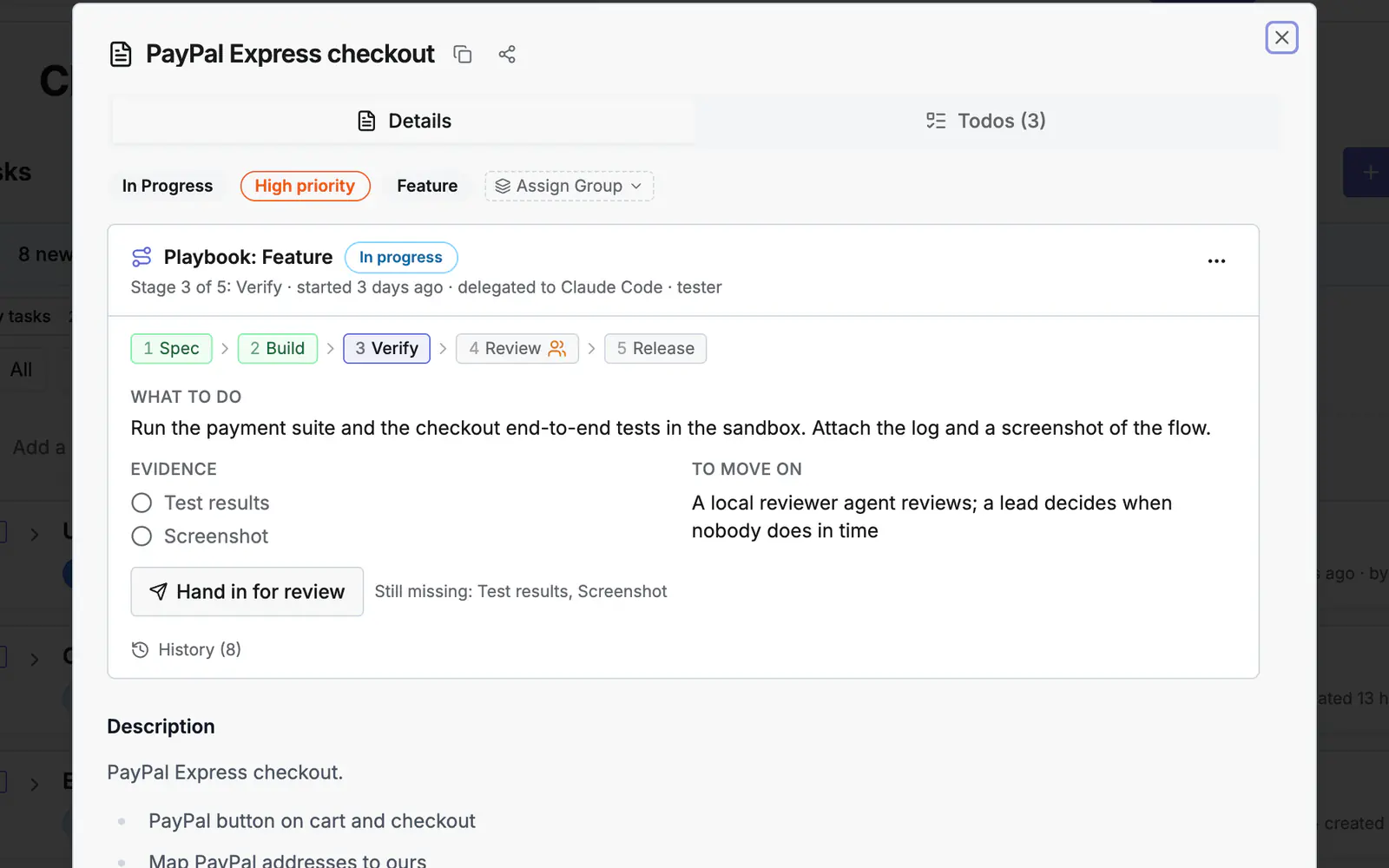
Tasks
High-level work items — features, bugs, or investigations. Each task contains one or more Todos.
Todos
Individual steps to complete a task. AI agents claim, update, and post artifacts on todos via MCP tools.
Groups
Organize tasks into Epics (themes), Sprints (time-boxes), or custom groupings. A task can belong to multiple groups.
Task Status Flow
Todo Status Flow
Creating Tasks
Three methods — choose the one that fits your workflow
Method 1 — Local Agent via MCP
Your IDE agent (Cursor, VS Code Copilot, Claude) calls MCP tools to create tasks and todos directly, then works on implementation while keeping Resolflow updated.
Create tasks for implementing OAuth2 login in my project
Create tasks based on this PRD document
The agent calls create_task and bulk_create_todos automatically.
Method 2 — AI Task Planner (Web)
- 1.Open your project → Create Task tab
- 2.Describe your goal — e.g., "Add user authentication with JWT"
- 3.Optionally attach reference documents for richer AI context
- 4.Click "Generate Plan" — the AI Orchestrator produces a structured plan with tasks, todos, priorities, and suggested groups
- 5.Review and click "Commit Plan" to save
📎 Document Attachment
Attach project docs as context for more accurate task generation
💾 Auto-save Drafts
Plans are versioned automatically — resume any earlier draft
🔀 Mermaid Diagrams
AI can generate architecture/flow diagrams as part of the plan
🛡️ Error Resilience
Recovers from partial LLM responses and network errors gracefully
Method 3 — Manual Creation
- 1.Go to project → Tasks tab → click "New Task"
- 2.Fill in title, description, type, and priority
- 3.Open the task detail panel to add todos manually
Task Groups: Epics & Sprints
Structure work into themes and time-boxes
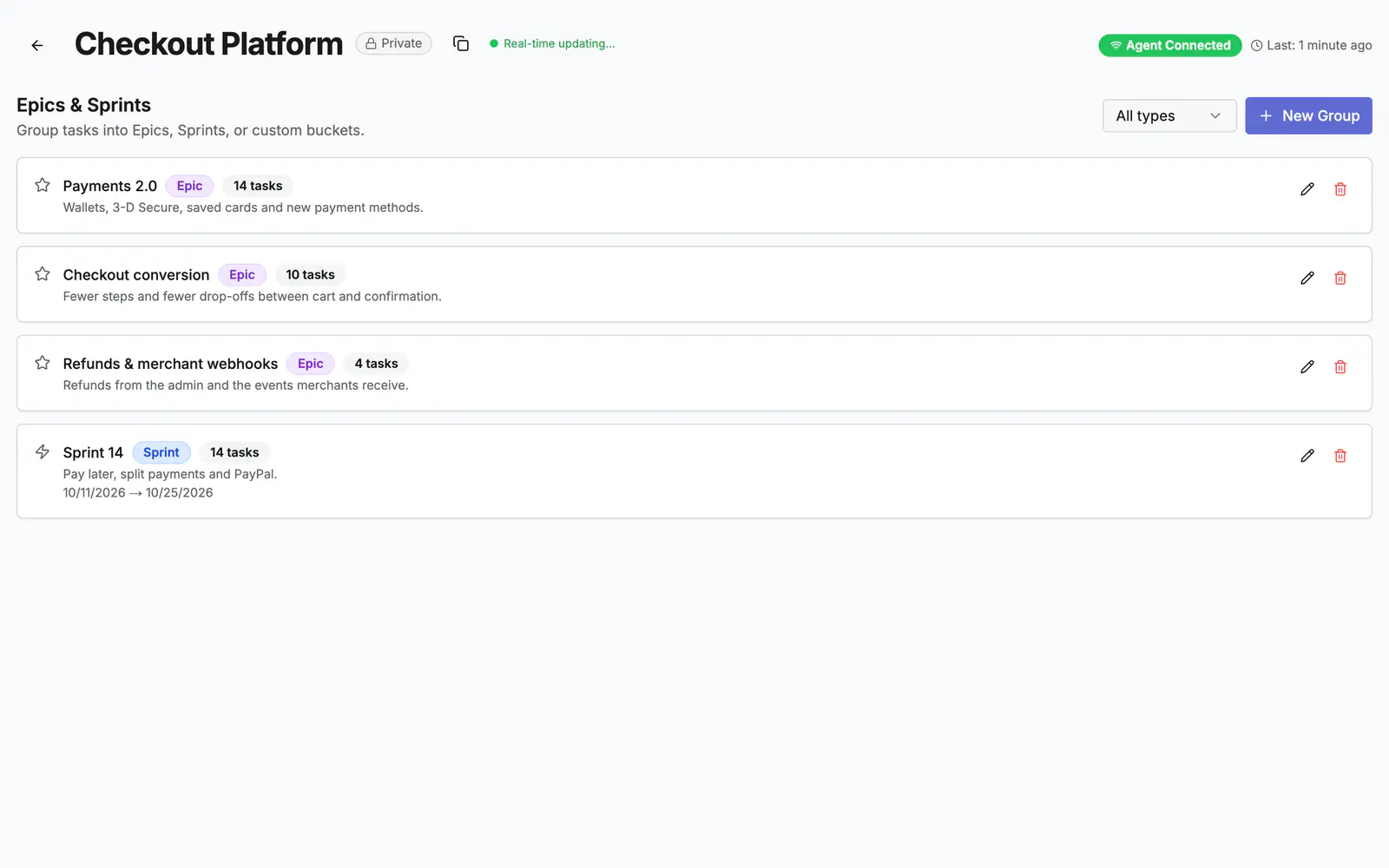
Epic
A broad theme or feature area. Groups multiple sprints or tasks under a single goal.
Sprint
A time-boxed iteration. Group tasks planned for a specific delivery window.
Custom
Any freeform label — team, component, milestone, or release.
How to Use Groups
Go to project → Groups tab → "New Group" → choose type (Epic, Sprint, Custom)
From any task card, click the group assignment button — a task can belong to multiple groups simultaneously
Switch to Tree View in the Tasks tab to see tasks nested under Epic → Sprint
Epic: Authentication System
Sprint: Sprint 1
└─ Implement OAuth2 login
└─ Add refresh token support
Sprint: Sprint 2
└─ Add MFA support
💡 AI Task Planner Integration
The AI Task Planner automatically suggests task groupings based on your feature description. Proposed groups are shown as badges on task cards before you commit the plan.
Reference Documents
Give the AI better context when generating tasks
Attach project documents (PRDs, specs, architecture notes) when generating tasks so the AI Orchestrator produces more relevant, well-scoped tasks and todos.
In the Task Create dialog, click "Reference Documents"
Search and multi-select documents from your project's document library
Selected documents are passed as context to the AI Orchestrator during plan generation
Monitoring Tasks
Views, filters, and real-time task detail
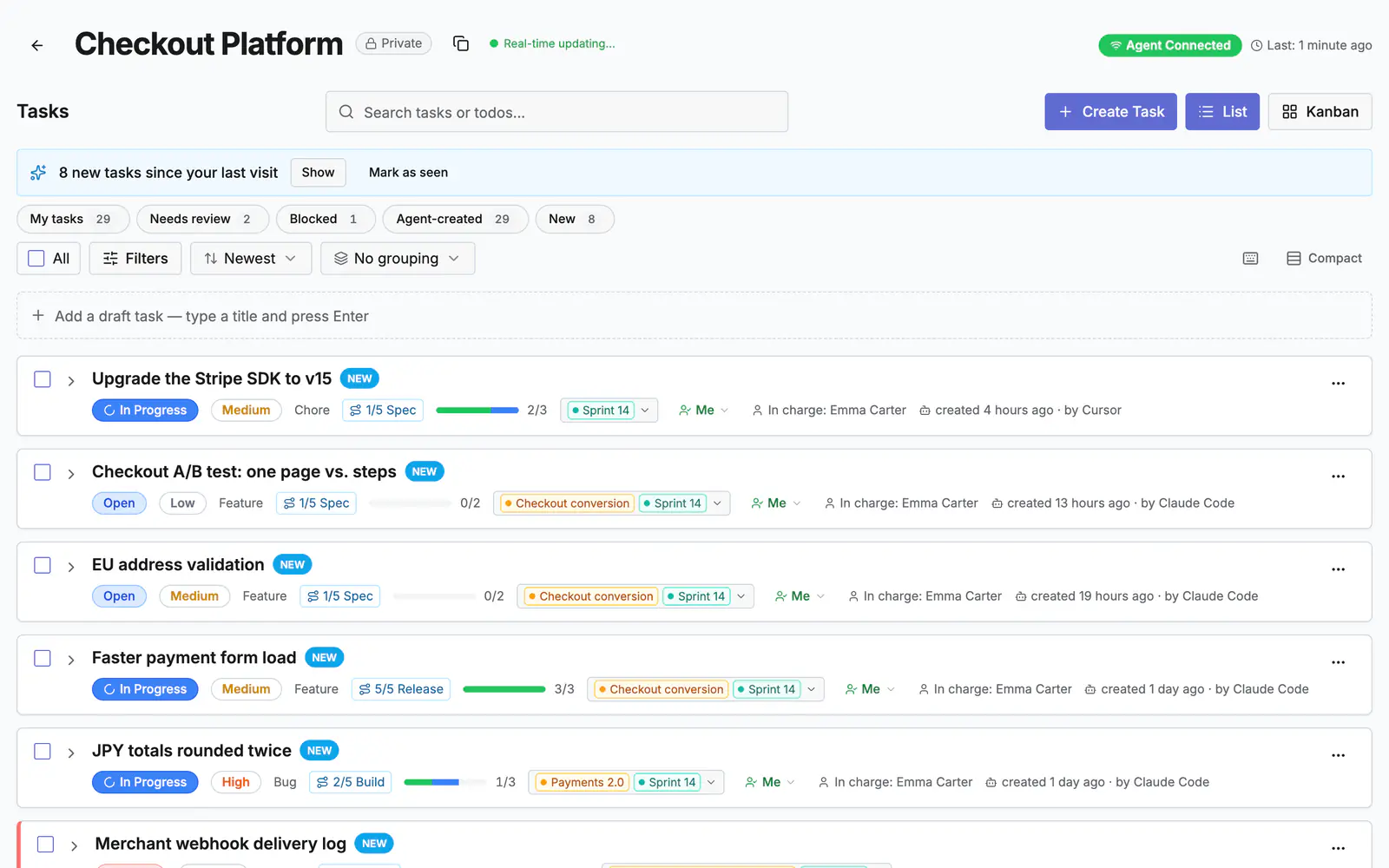
Task Views
Board
Kanban columns by status — Open, In Progress, Done, Blocked
Tree
Tasks nested under Epic → Sprint with collapsible sections
List
Flat list with sort and multi-select filter combinations
Filters
- • Filter by status, priority, type, and task group
- • Multi-select dropdown supports complex filter combinations
- • Filters persist across page navigation
Task Detail Panel
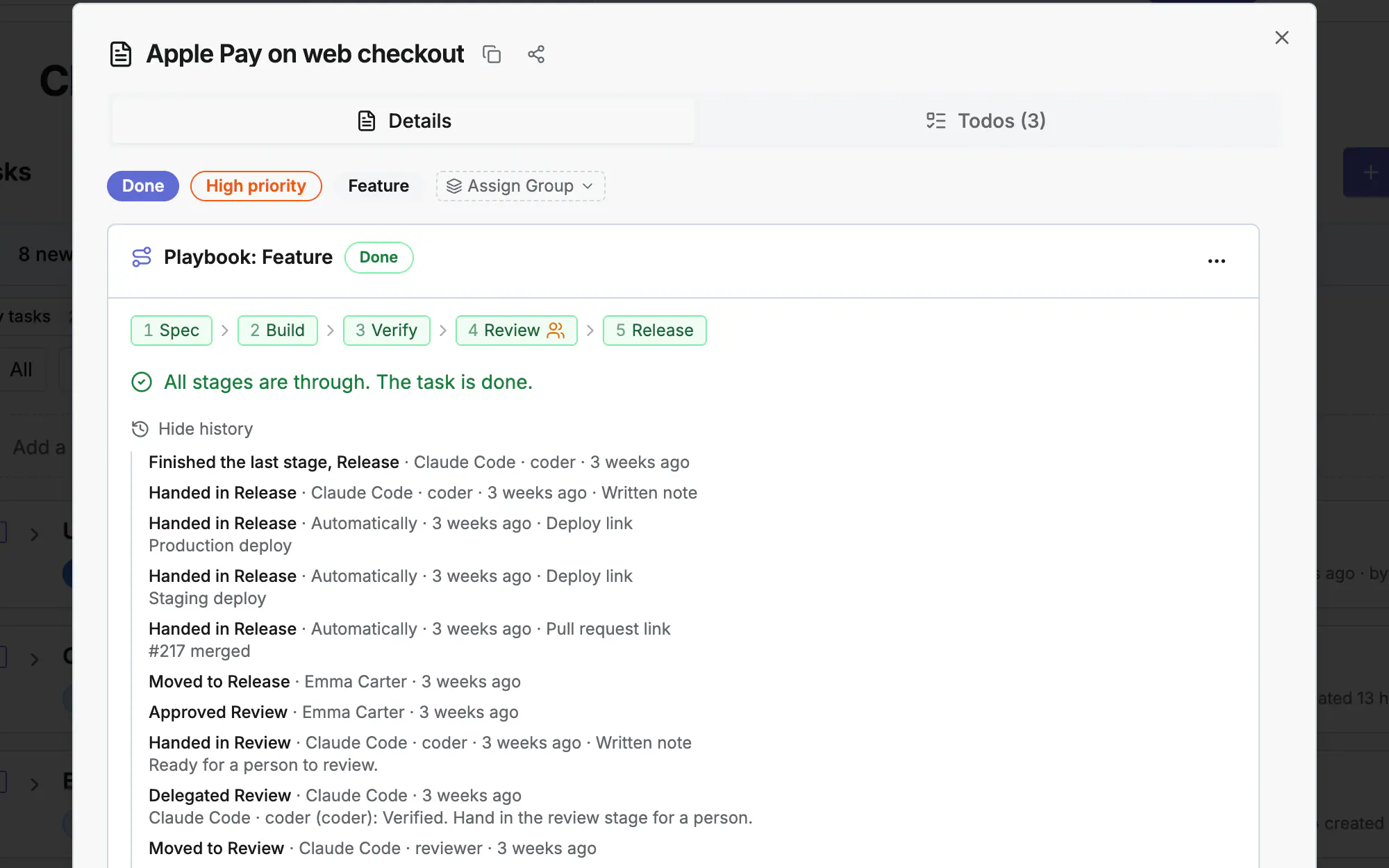
Click any task to open the detail panel:
- • Edit title, description, priority, and type
- • View and manage todos
- • See a full timeline of agent activity in real time
- • View artifacts posted by agents — code diffs, test results, logs
Agent Interaction
What your connected AI agent can do with tasks and todos
Claim a todo
claim_todoMarks it in_progress so the orchestrator knows who is working on it
Update progress
update_todo_statusAdd notes, change status, keep the timeline current
Post artifacts
post_todo_artifactAttach code diffs, test output, or log snippets to a todo
Signal blockers
report_loop_signalReport a loop or blocker so the orchestrator can intervene
Ask for guidance
ask_orchestratorGet AI guidance mid-task without leaving the IDE
Find work
search_tasks / get_task_by_idLook up tasks and todos by ID or keyword
All agent activity appears in the task's timeline in real time. 22 MCP tools are available — see the MCP Setup guide for the full list.
Reports
Generate insights from task and agent activity
Generate project reports from the Reports tab:
Use the get_report and list_reports MCP tools to fetch reports programmatically from your agent.