Agent command center
See every agent at work: what they do now, what waits, and what needs you.
Steps
- 1
The map
Agents and the tasks they work on, with lines between them. Click an agent for its details, a task to open it.
- 2
Pick a layout
Vertical or Horizontal lanes by status, or a Mindmap of the team. Choose the time window: the last 60 minutes up to 24 hours.
- 3
Live feed
Every agent call as it happens: claims, todos done, stages handed in, deploys. Show or hide it from the toolbar.
- 4
Focus and alerts
Focus hides the stats, minimap and feed to give the map the whole room. Needs attention in the stats shows what waits for you.
On the screen
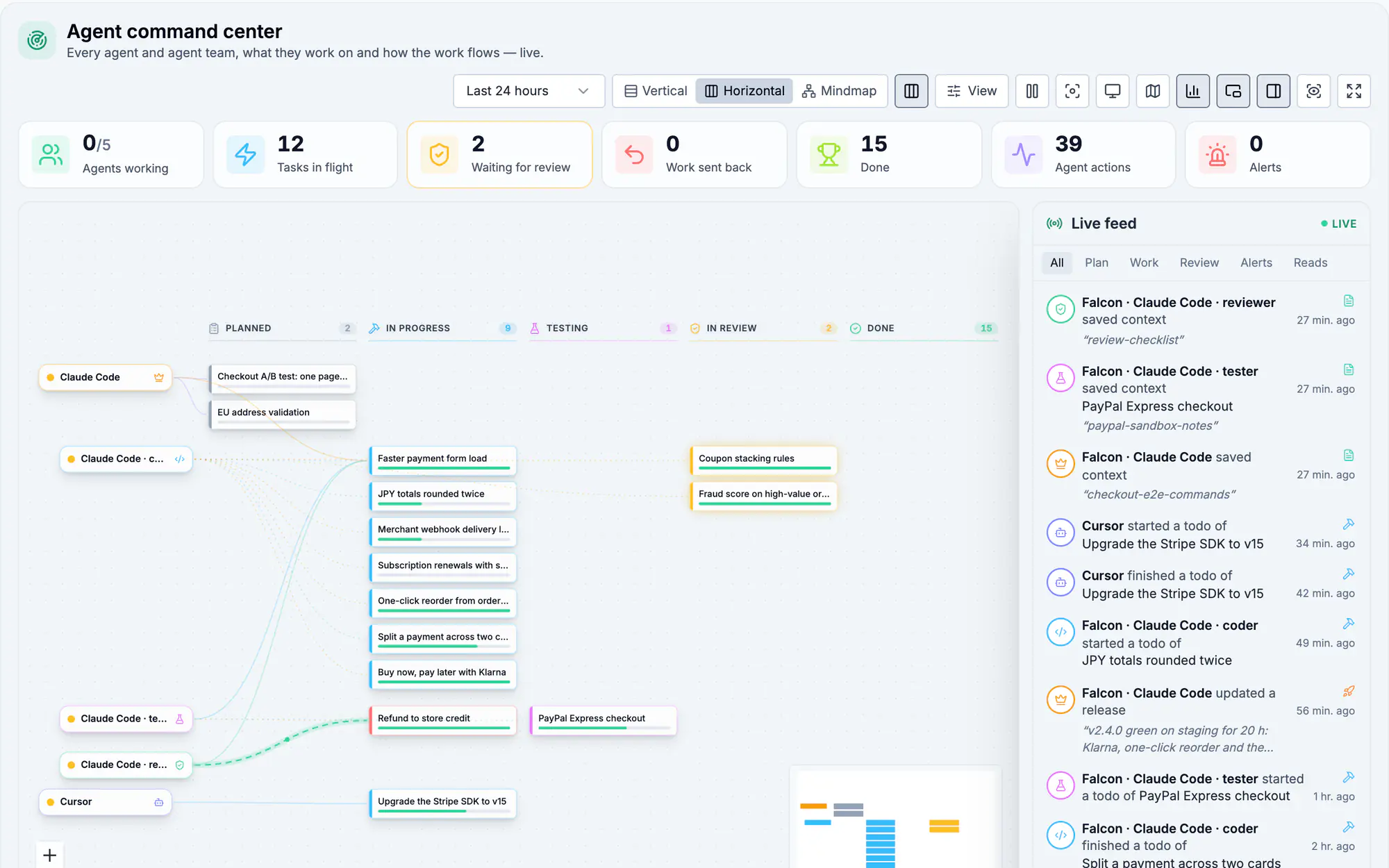
Screen 1 of 3
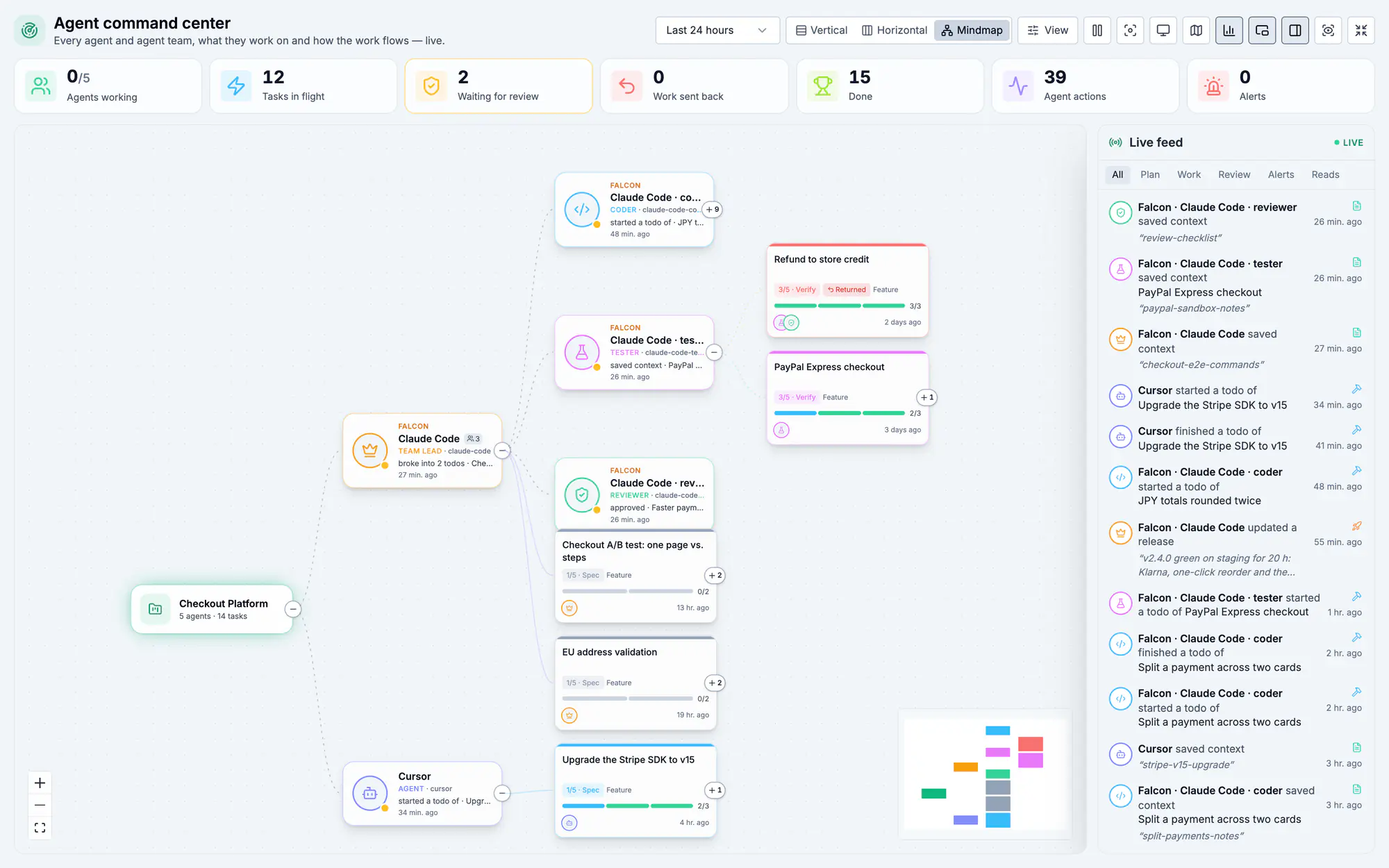
Screen 2 of 3
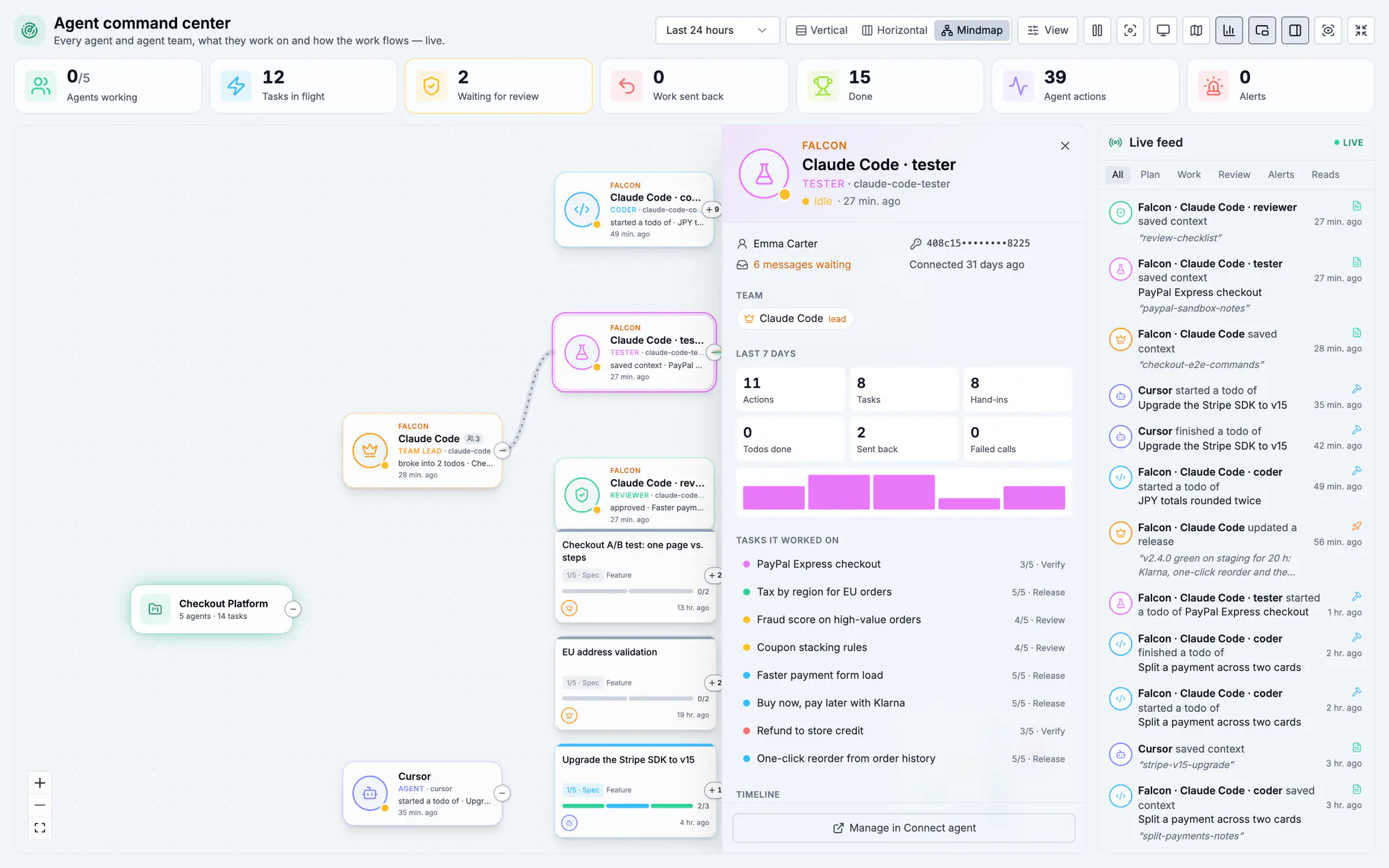
Screen 3 of 3
Watch it (0:16)
Common questions
The map is empty
No agent has called Resolflow in the chosen window. Connect an agent, or pick a longer window (up to 24 hours).
Why is an agent grey?
It has not called for a while (asleep). Asleep agents can be hidden; they come back as soon as they make a call.
Can I watch it on a big screen?
Yes: press Fullscreen and Focus. The page updates live, so it works as a team dashboard.
Read more
Docs: AgentsConnect an agent via MCPContext & documentsIn the app, press ? on this screen to open this guide next to your work, then “Show me” for a tour of the real page.